Aircover integrates seamlessly with HubSpot. Follow the guide below to unlock AI-powered RevOps, intelligent field and account/opportunity mapping, and agentic workflows to your CRM.
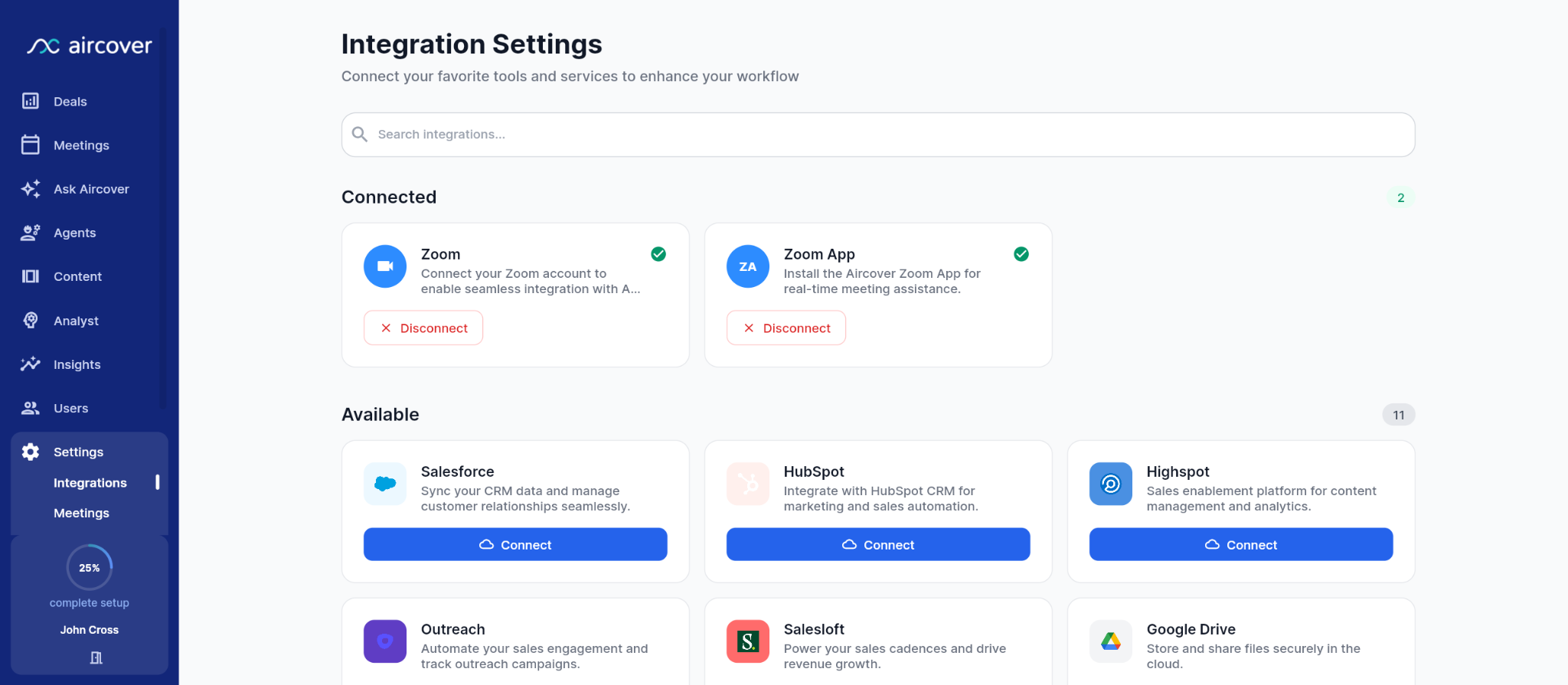
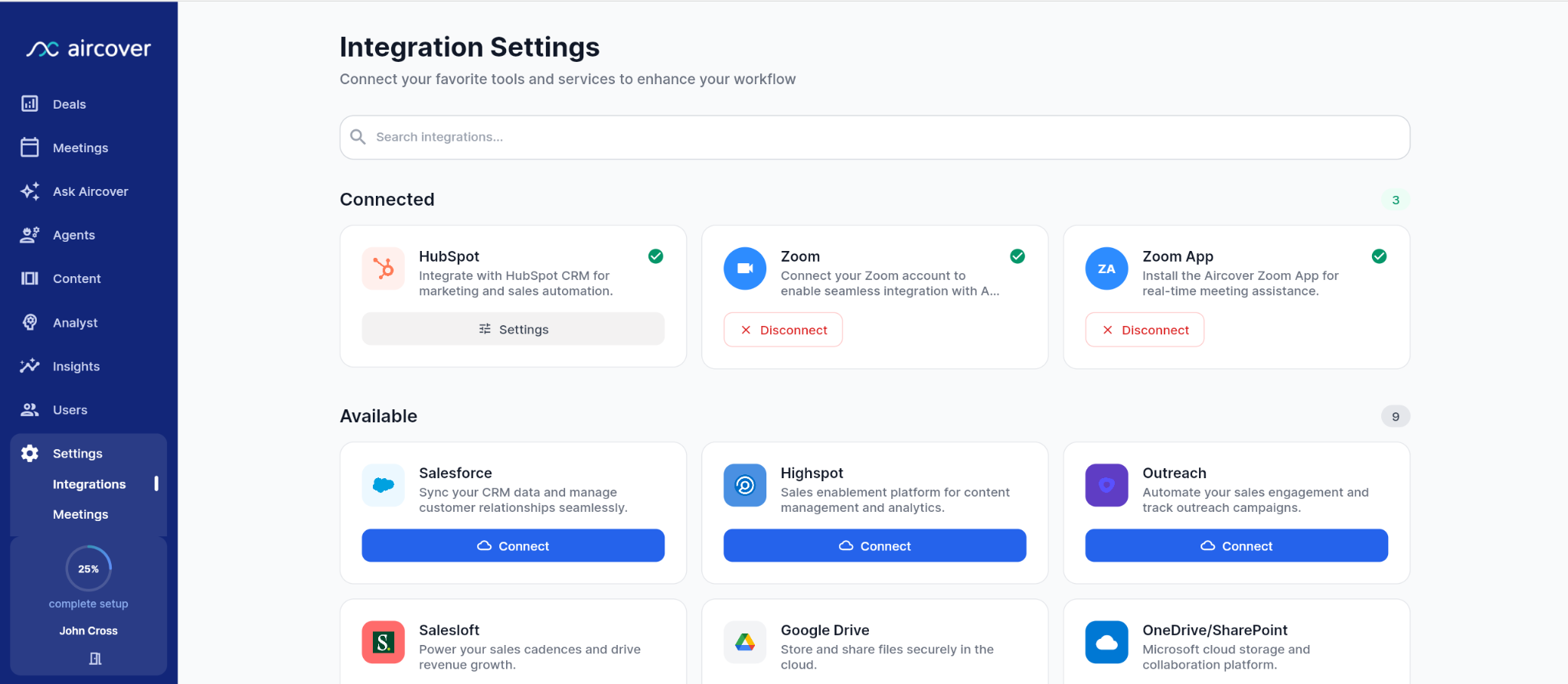
Connect Aircover to HubSpot (OAuth): To begin syncing meeting intelligence, an Admin must authorize the connection between the two platforms.Action: Log in to your Aircover dashboard.
Navigation: Go to Settings > Integrations.
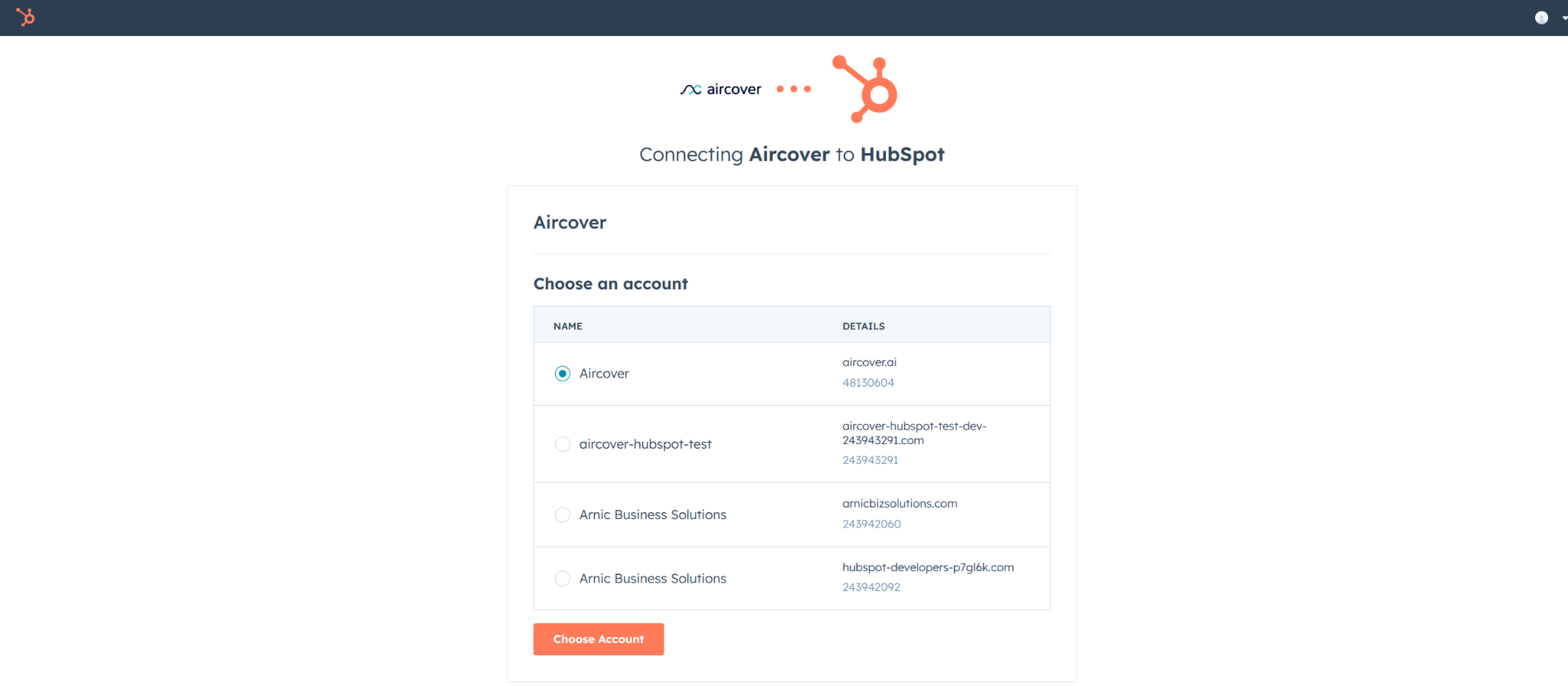
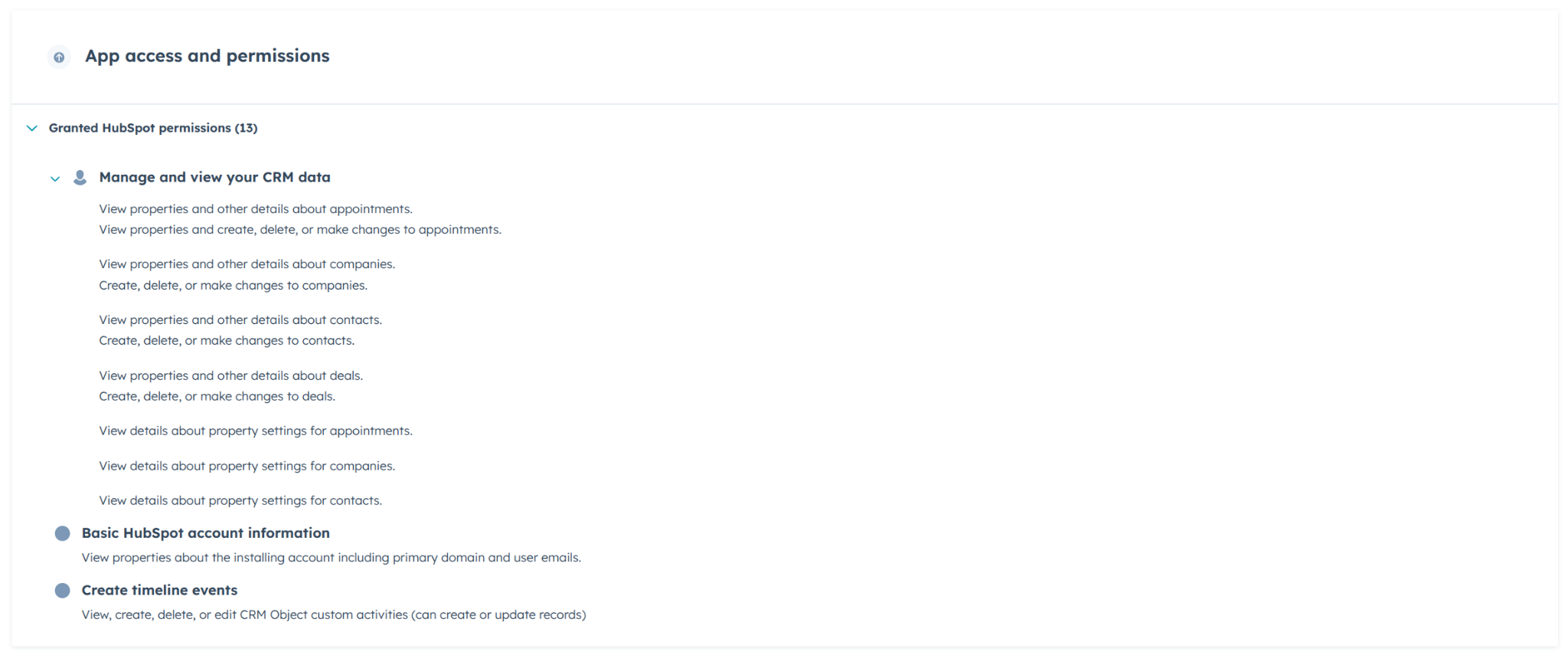
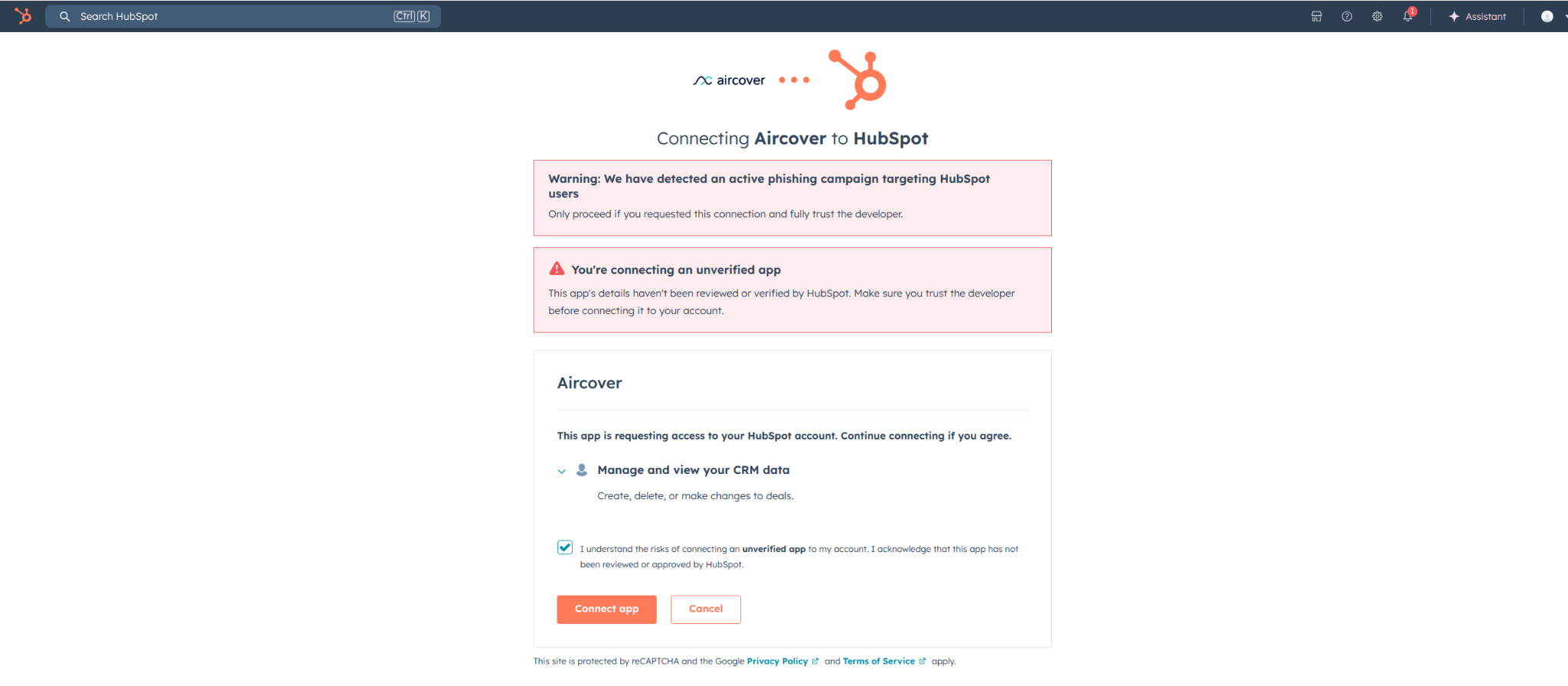
Execution: Locate the HubSpot card and click Connect HubSpot. You will be redirected to HubSpot to select your portal and approve the required permissions (scopes).
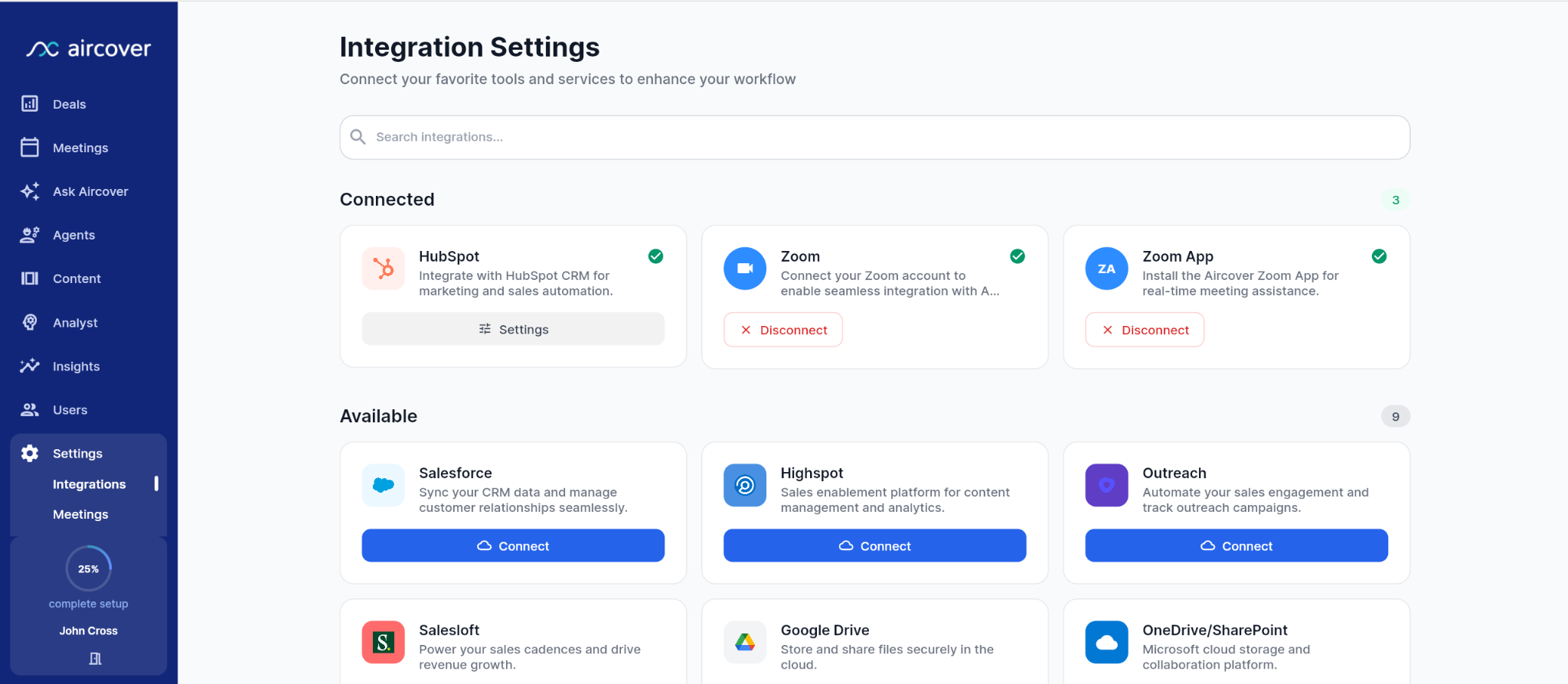
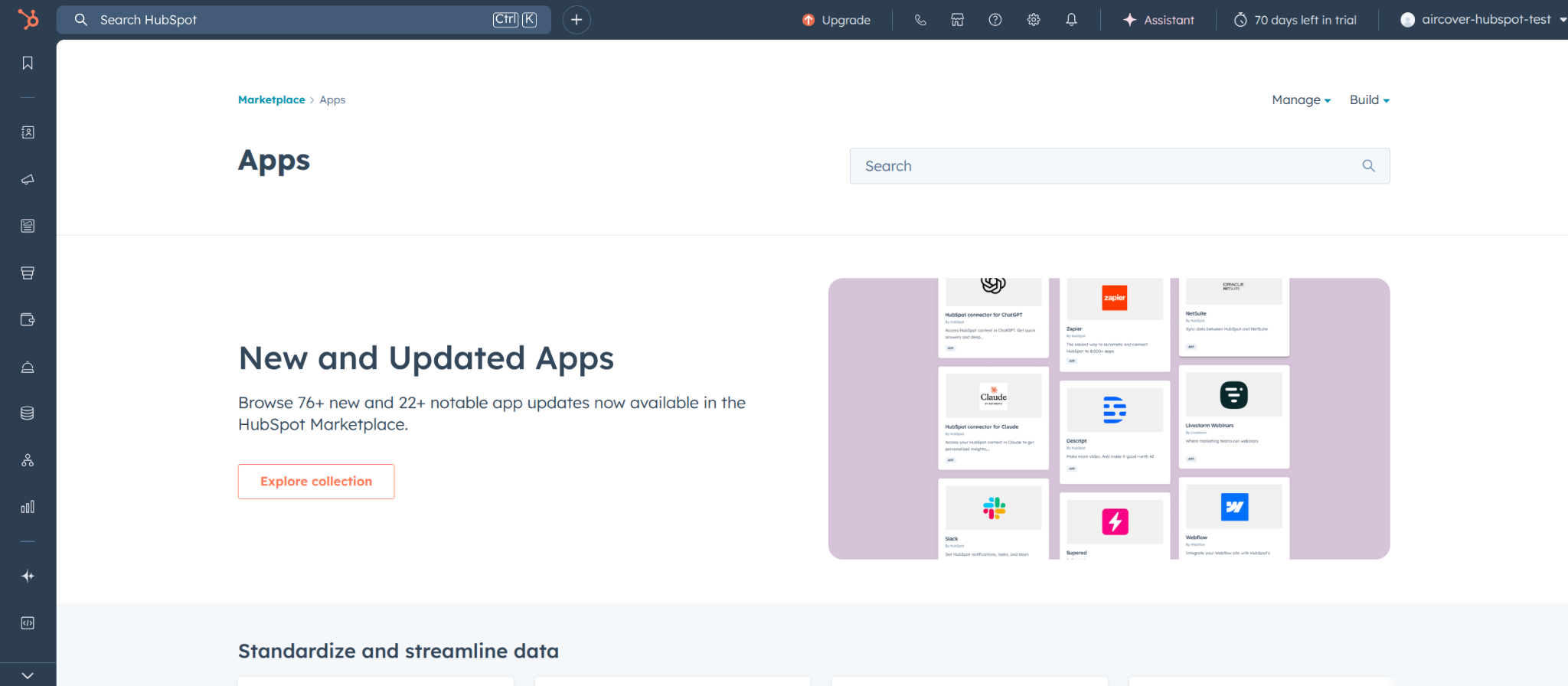
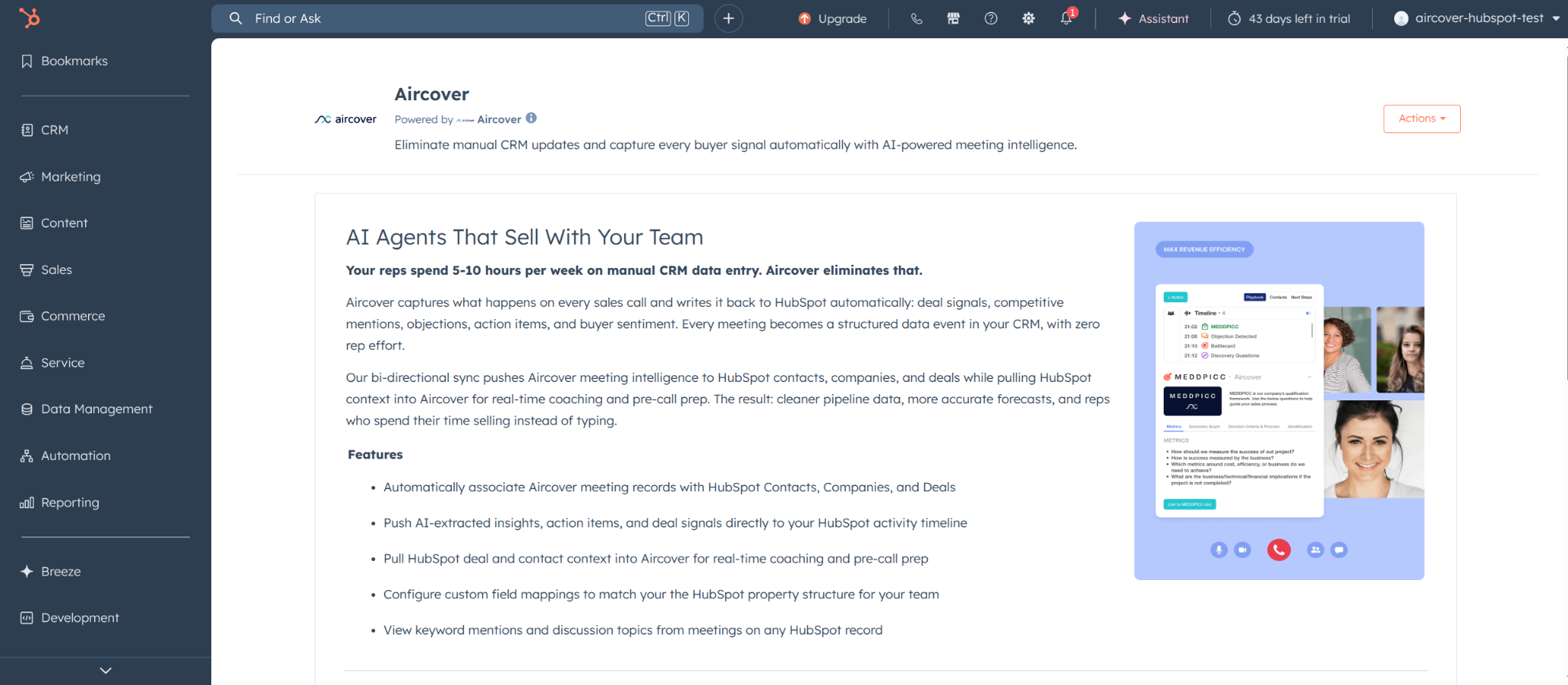
Verification: Once redirected back to HubSpot, the Aircover app will be visible on the Connected Apps page. Within Aircover, the HubSpot card status will also display as "Connected."
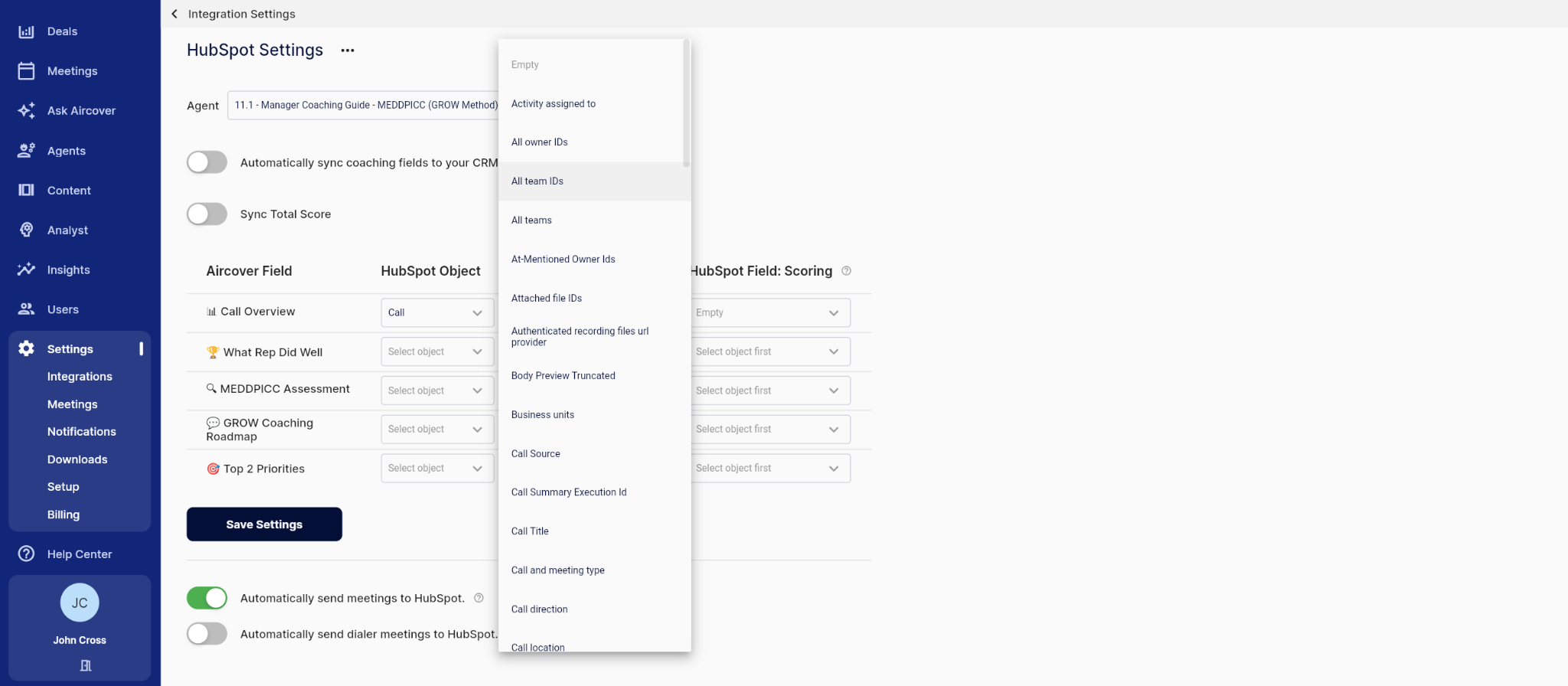
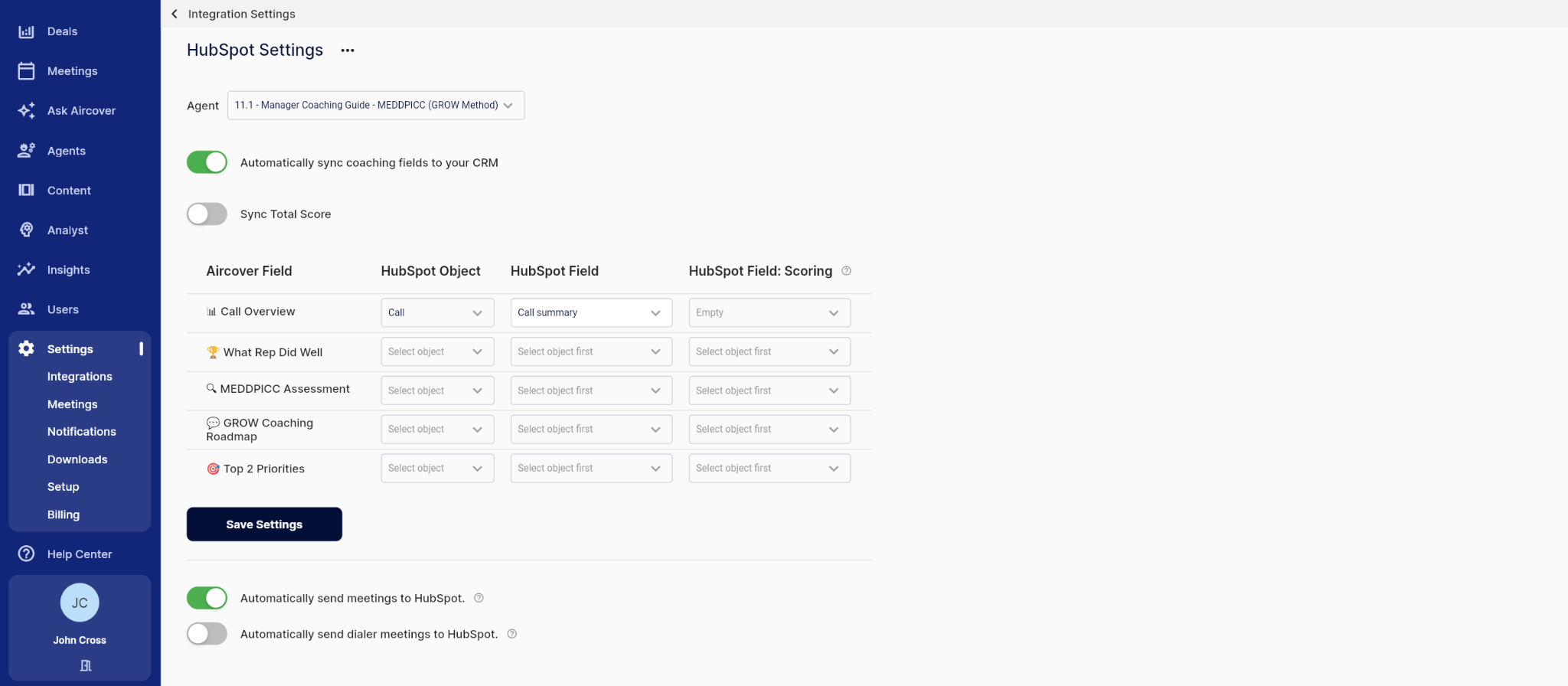
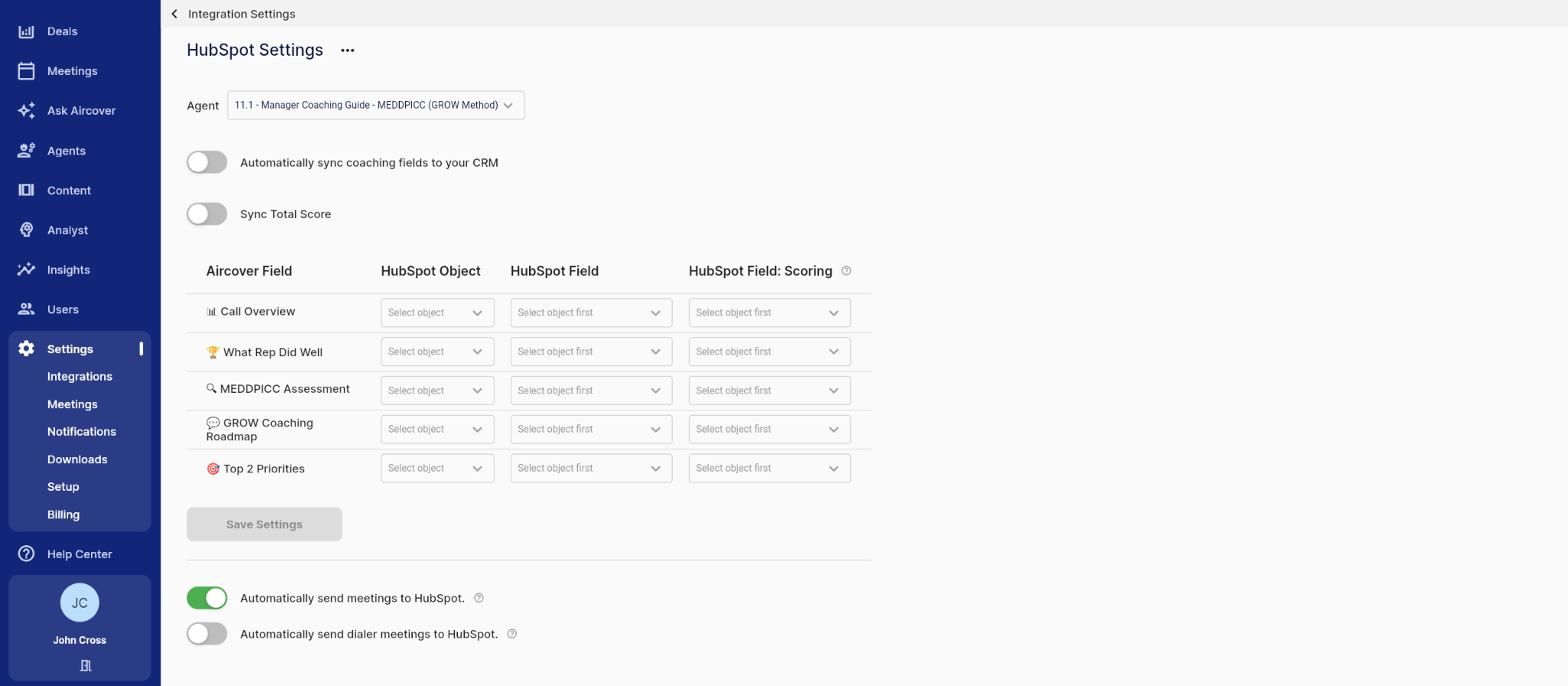
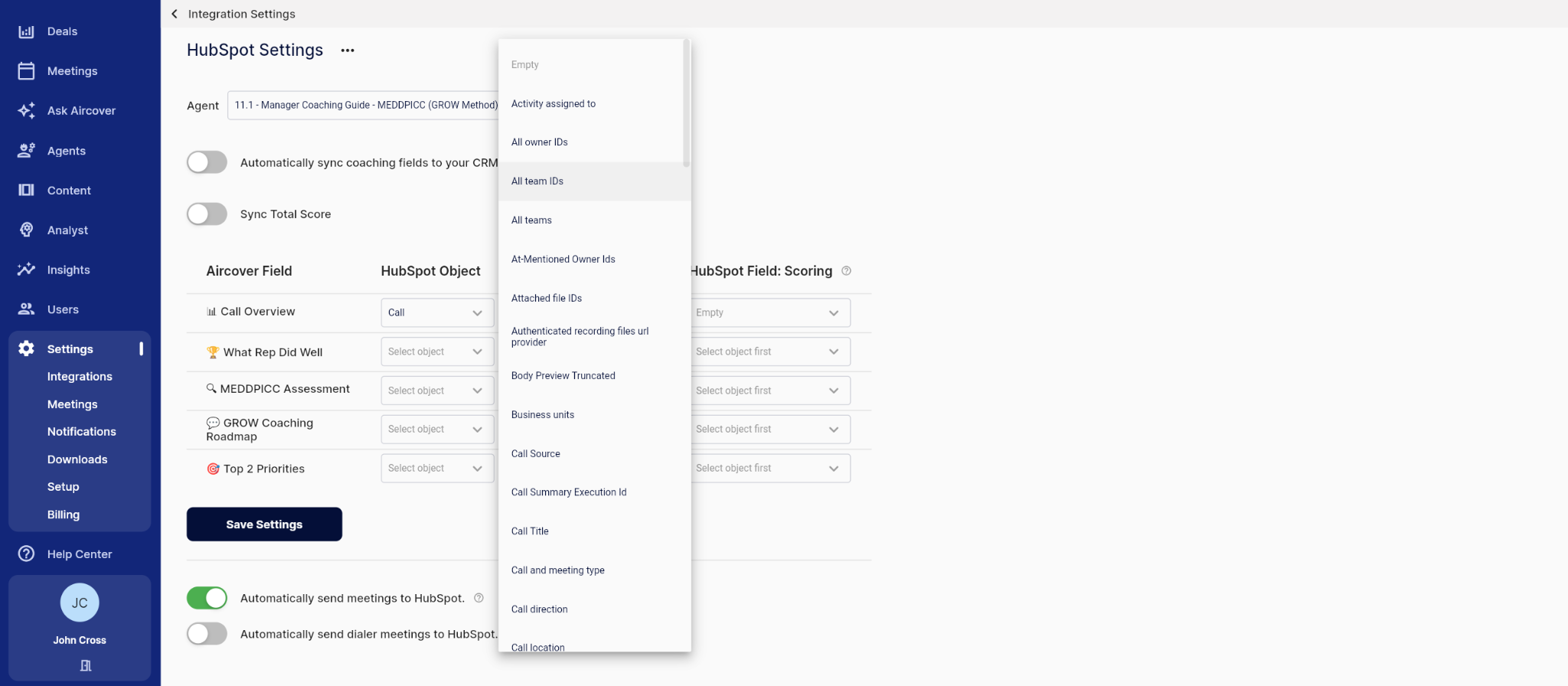
Configure Mapping & Sync SettingsEnsure your Aircover data flows into the correct HubSpot properties.Navigation: From the Integration Settings page, click Settings on the HubSpot card.
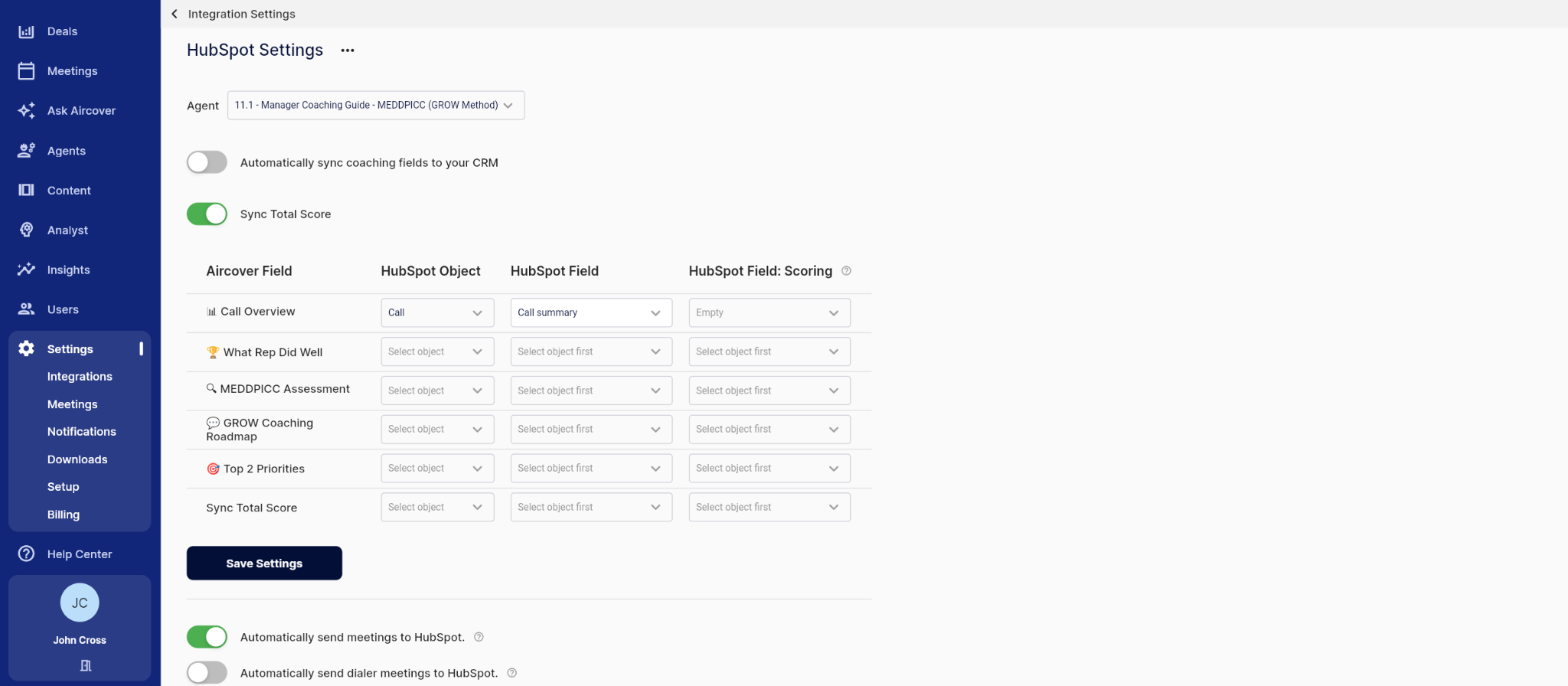
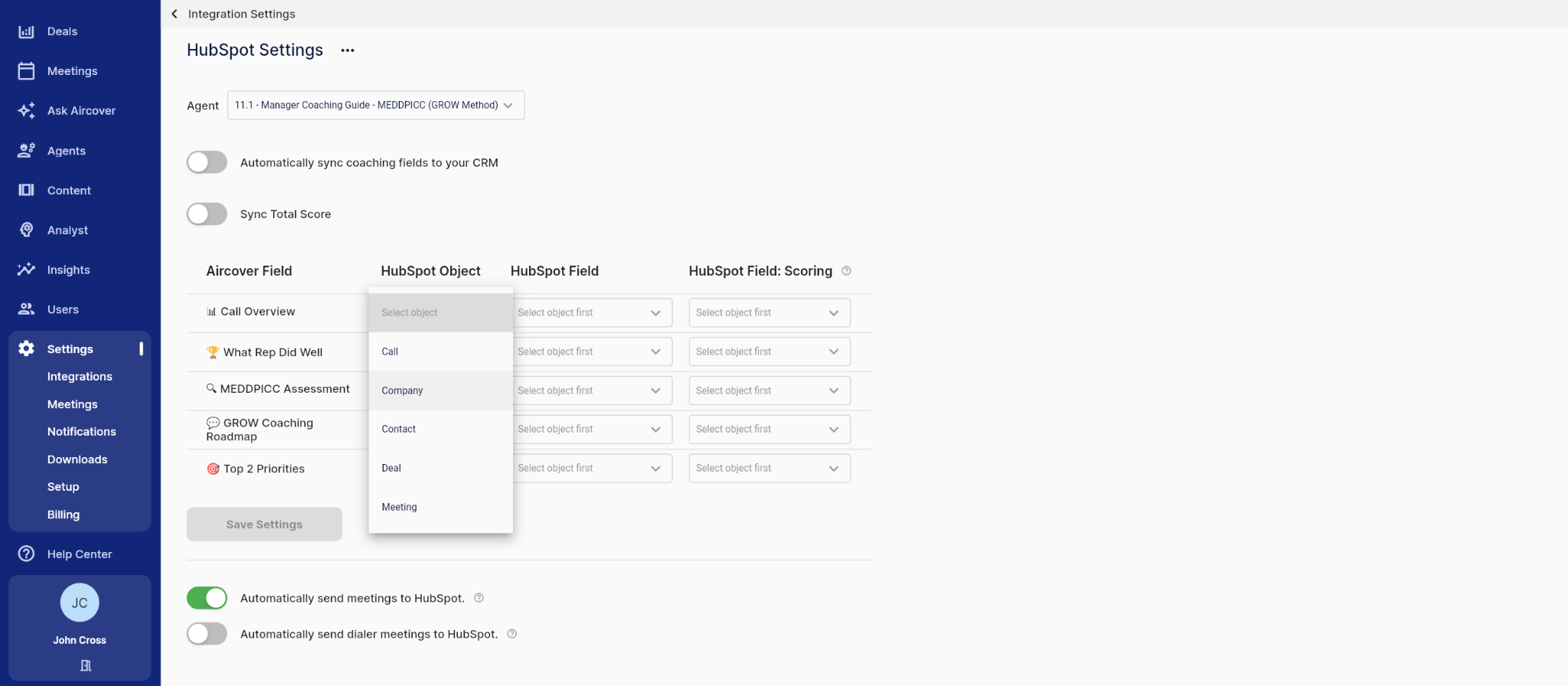
Field Mapping: Map Aircover’s AI-extracted fields (e.g., Action Items, Competitors, Sentiment) to your desired HubSpot Company, Contact, or Deal properties.
Sync Logic: Toggle on “Automatically sync coaching fields to your CRM” to enable or disable sending coaching field data to HubSpot.
Configuration: Click Add Cards.
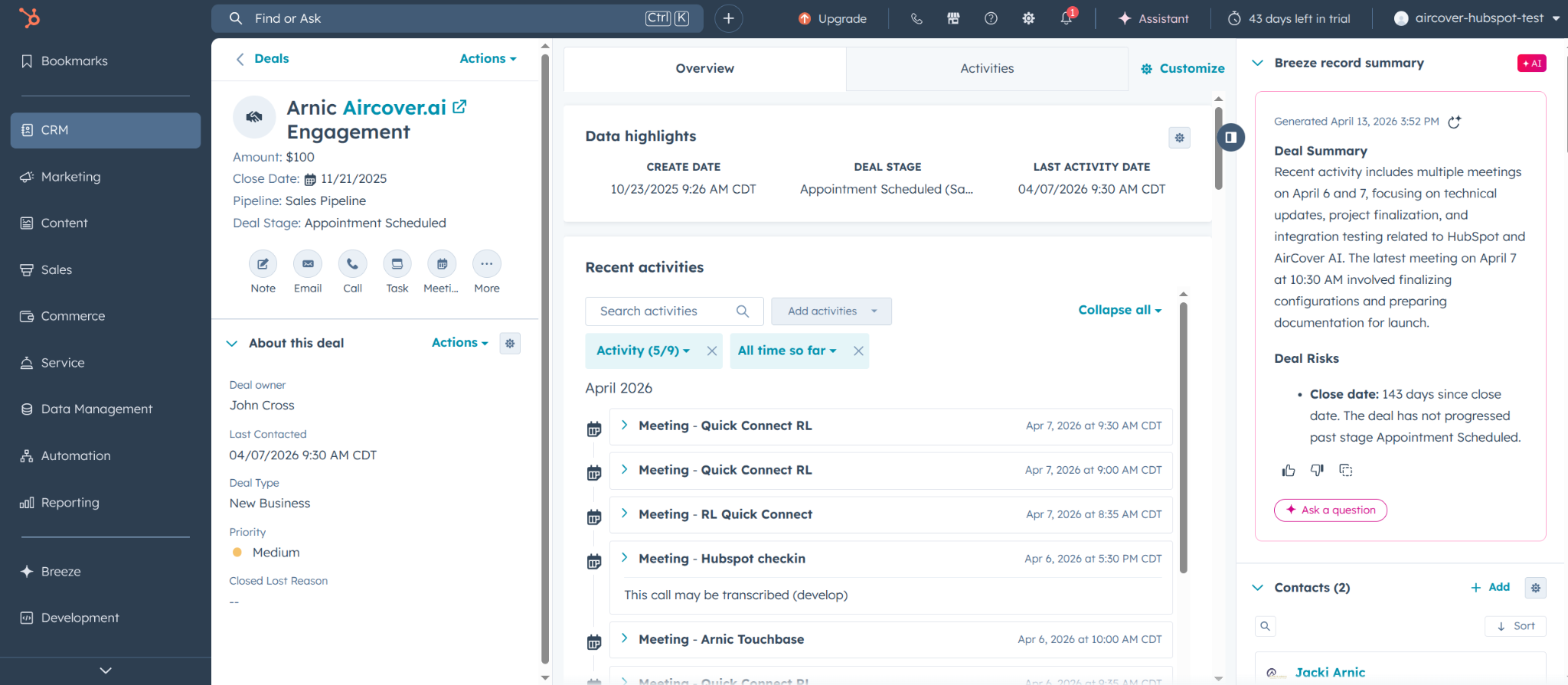
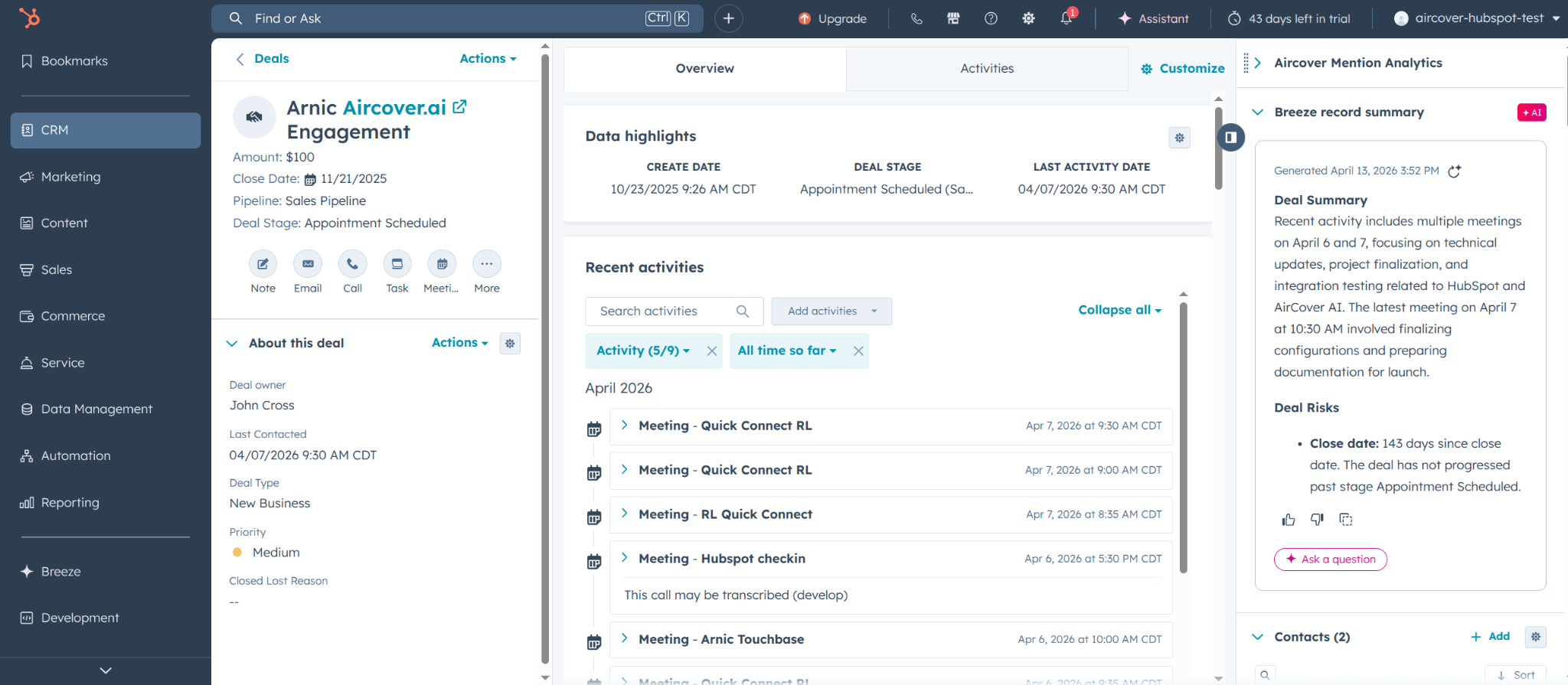
Deploy App Cards (Optional but Recommended)Make Aircover data visible to your sales team directly within the HubSpot record sidebar.Action: Open any Company or Deal record in HubSpot.
App Support: Aircover + HubSpotSupport Contact Information
Target Response Time: 1 Business Day (Monday – Friday, 9:00 AM – 5:00 PM PST)
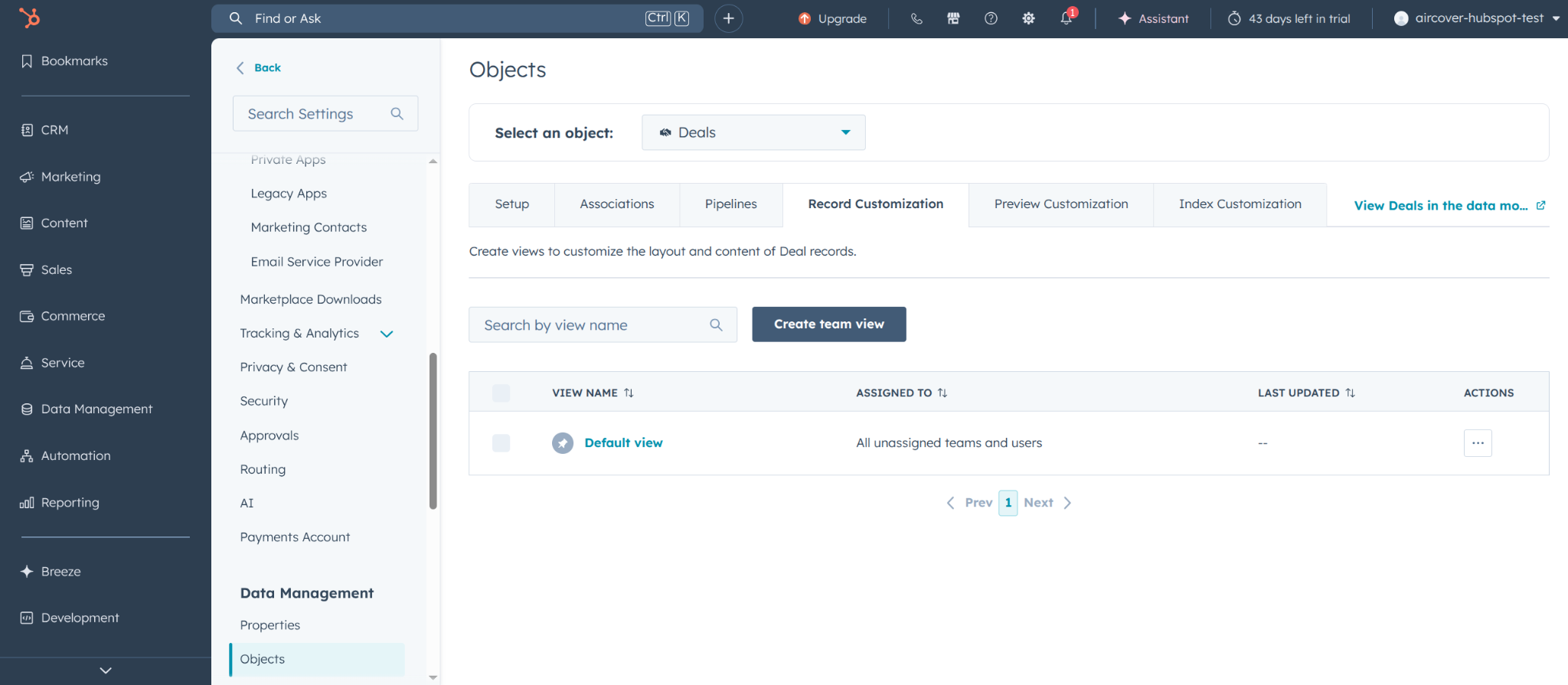
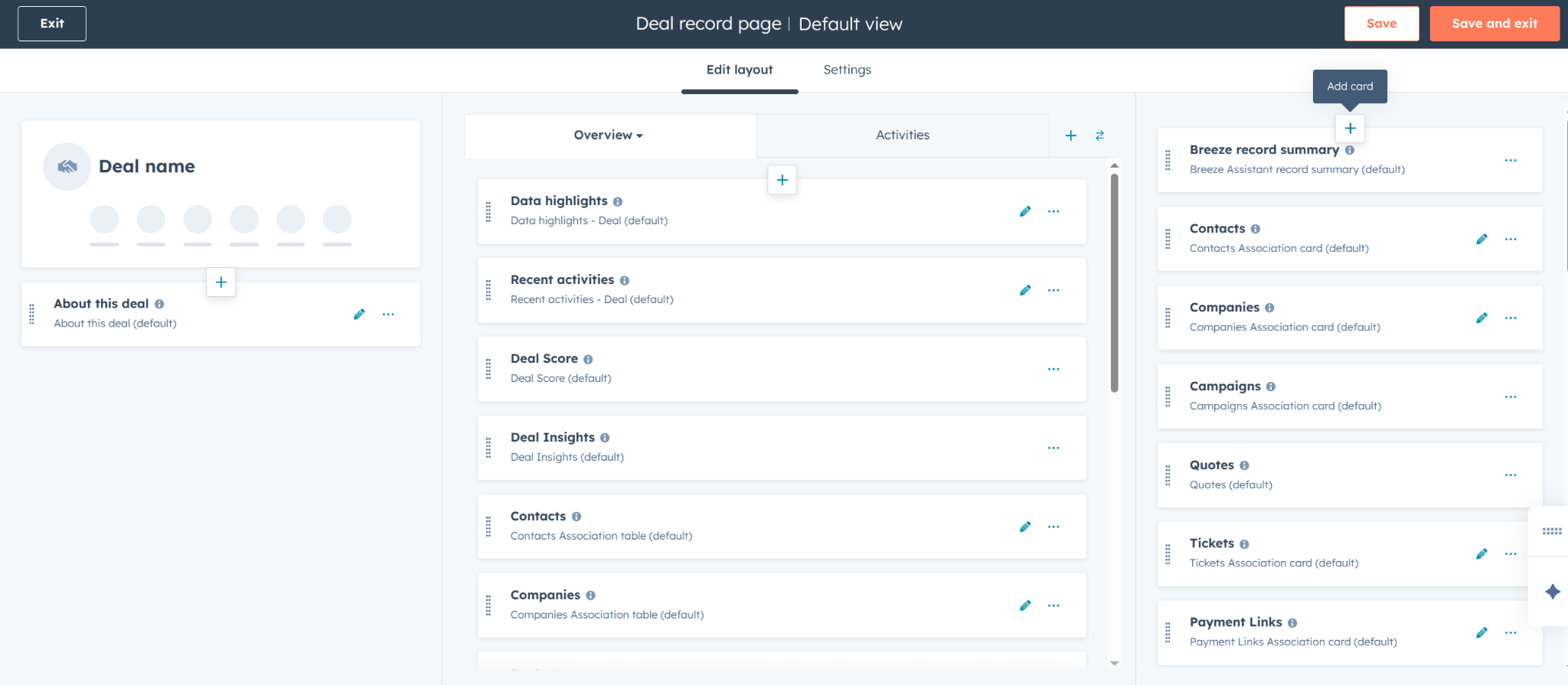
Customization: Click Customize to access the view that controls the layout and content for your records. Then click on the view that you wish to modify.
Result: Reps can now view recent keyword mentions and meeting summaries without leaving the CRM.
Appendix
Aircover Integration Settings
Connecting Aircover To HubSpot
Admins can authorize connections to HubSpot by clicking the
button located on the page. Users can access this option from the side bar : Settings > Integrations.
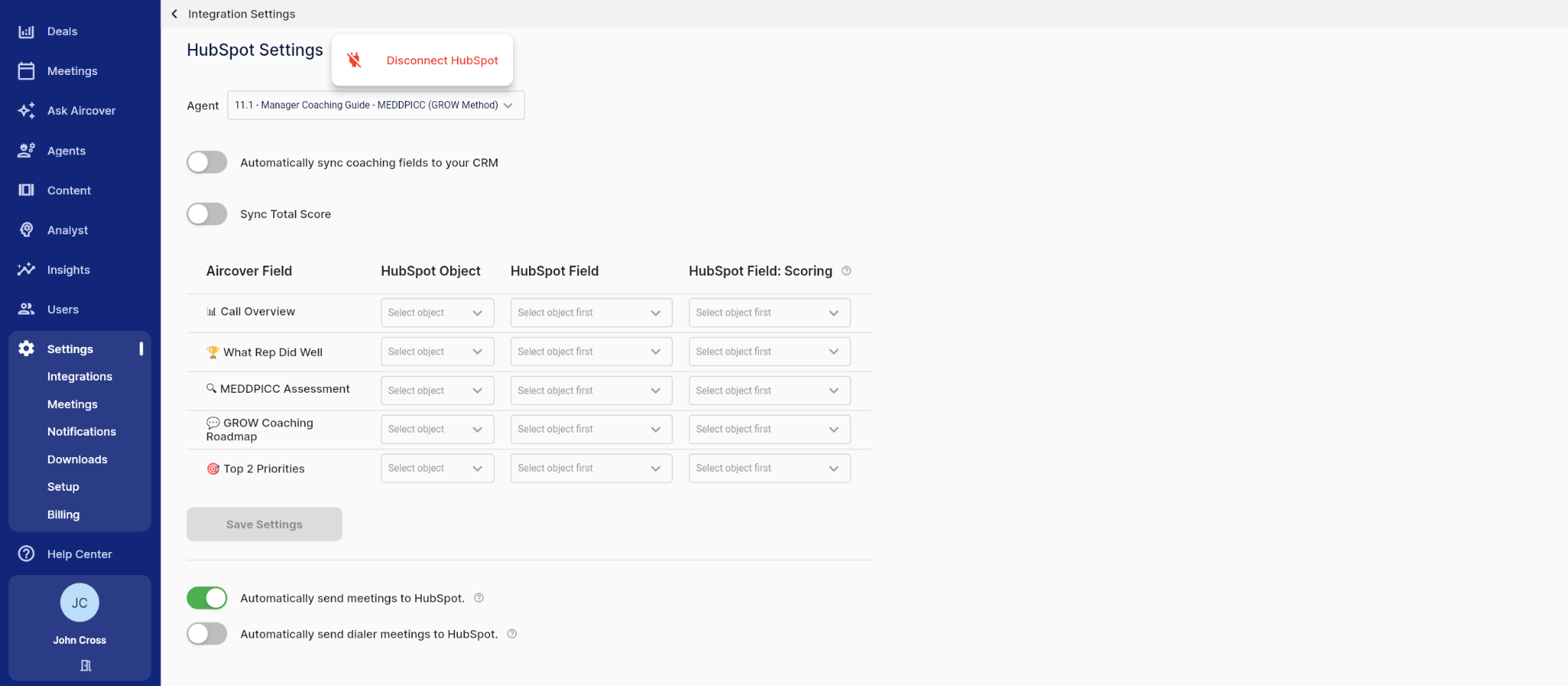
HubSpot Settings Admins can manage the connection to their HubSpot portal by clicking the button located on the page. Users can access this option from the side bar: Settings > Integrations.
The HubSpot Settings page allows users to manage key configuration options including score syncing and field mapping.
Coaching Field Sync Users can control when Aircover sends coaching fields to HubSpot from the page. Toggle the switch to enable or disable sending coaching field data to HubSpot.
Total Score Sync Users can control when Aircover sends Total Score values to HubSpot from the page. Toggle the switch to enable or disable sending scoring data to HubSpot.
Aircover Field Mapping Users define mappings between Aircover fields and HubSpot properties from the page. Admins can specify the desired HubSpot Object and HubSpot property to map to each Aircover field.
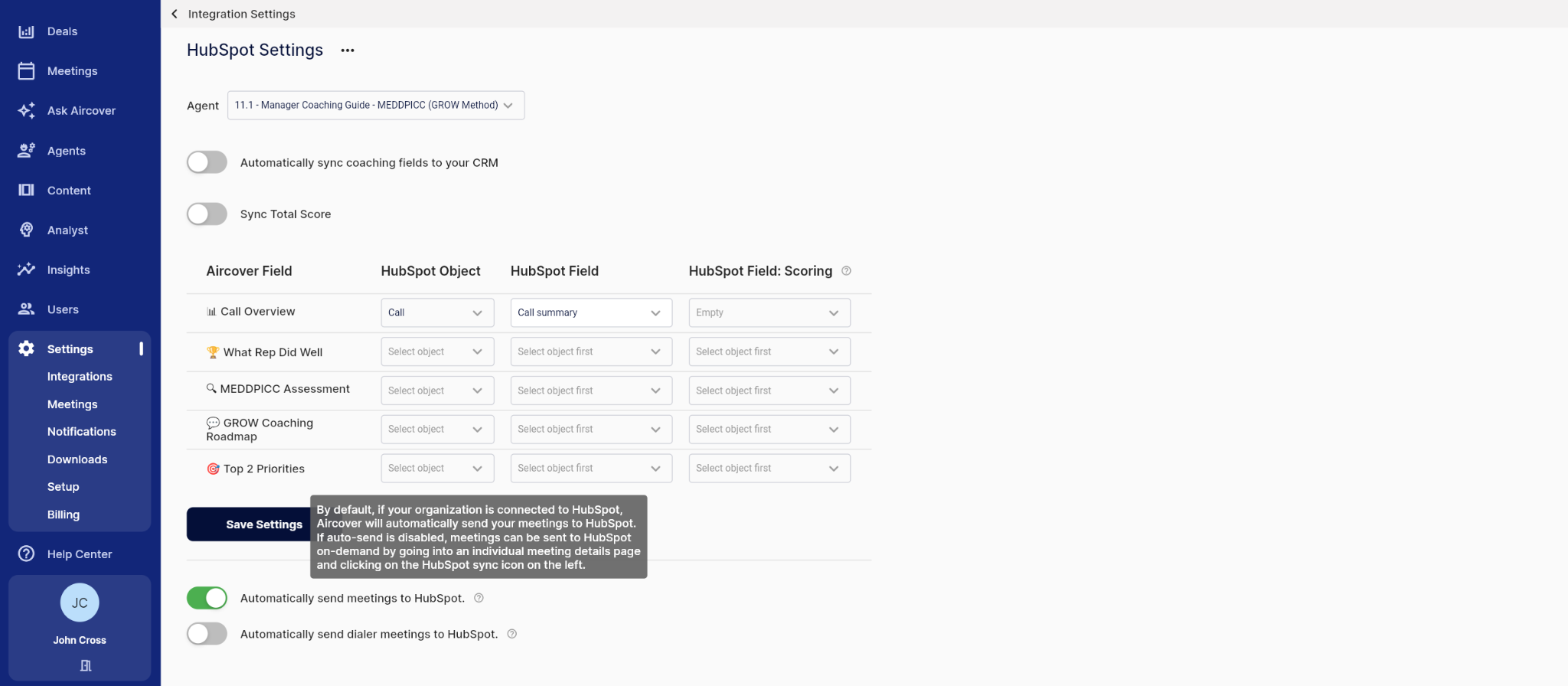
Sending Meeting Data To HubSpot Users can control when Aircover sends meeting data toHubSpot from the HubSpot Settings page. Toggle the switch to enable or disable sending meeting data to HubSpot.
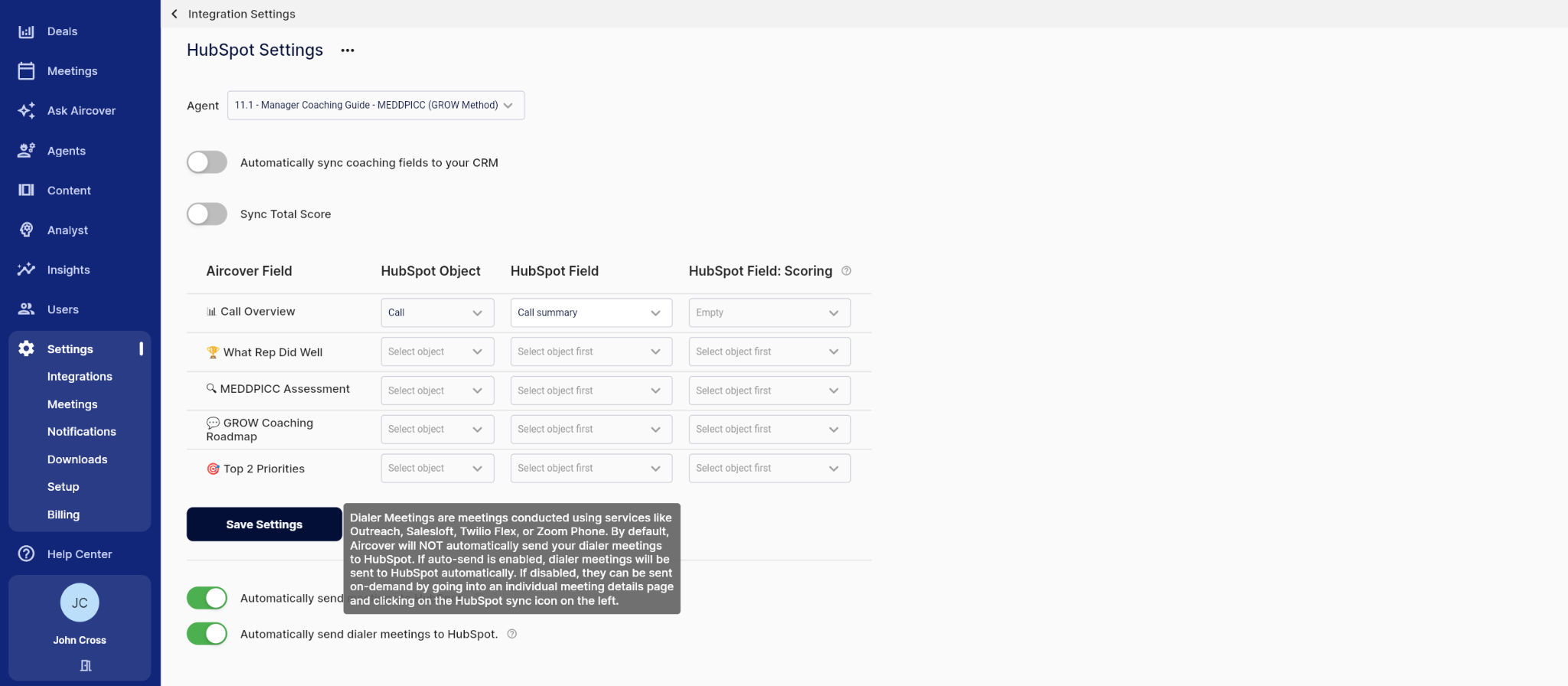
Sending Dialer Meeting Data To HubSpotUsers can control when Aircover sends dialer meeting data toHubSpot from the HubSpot Settings page. Toggle the Automatically send dialer meetings to HubSpot switch to enable or disable sending dialer meeting data to HubSpot.
Disconnecting Aircover From HubSpot Users can disconnect a given HubSpot portal at any time by selecting the option from the HubSpot Settings page.
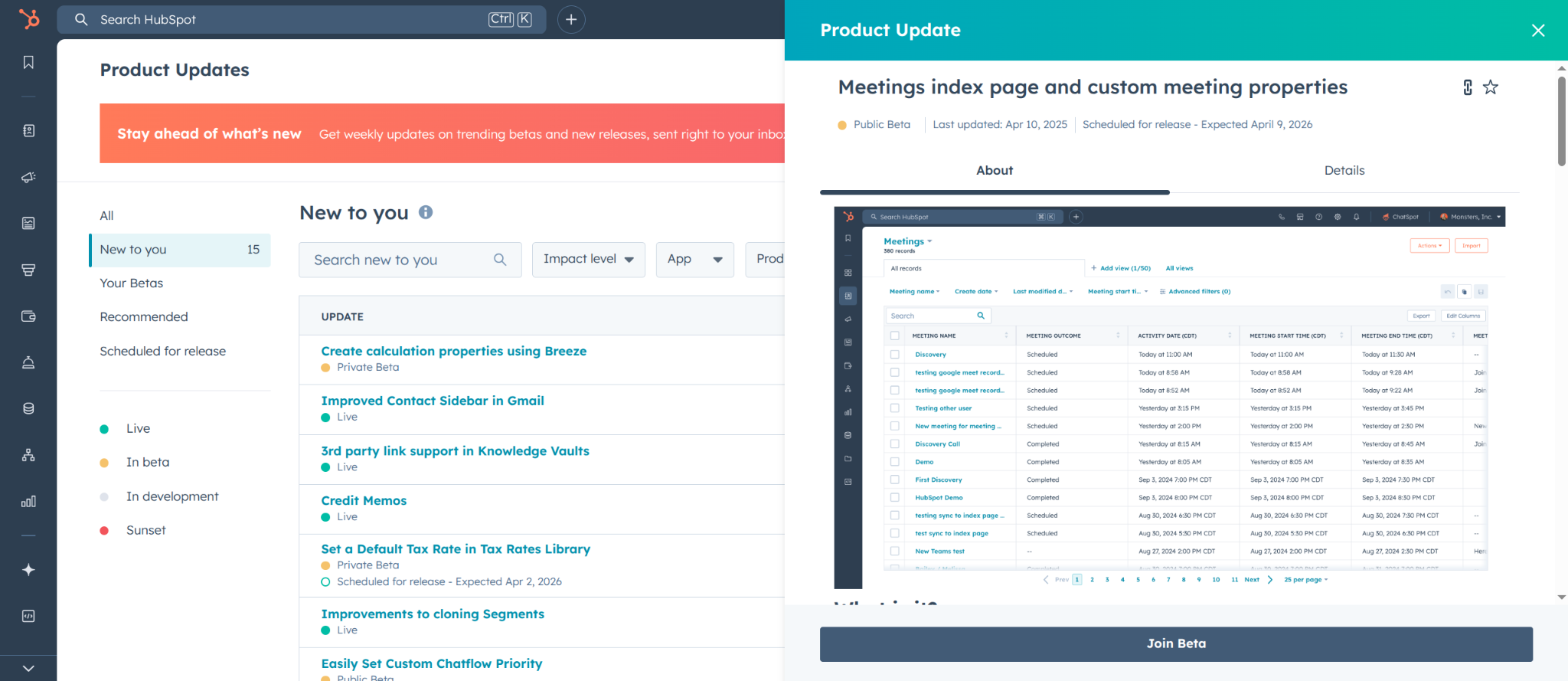
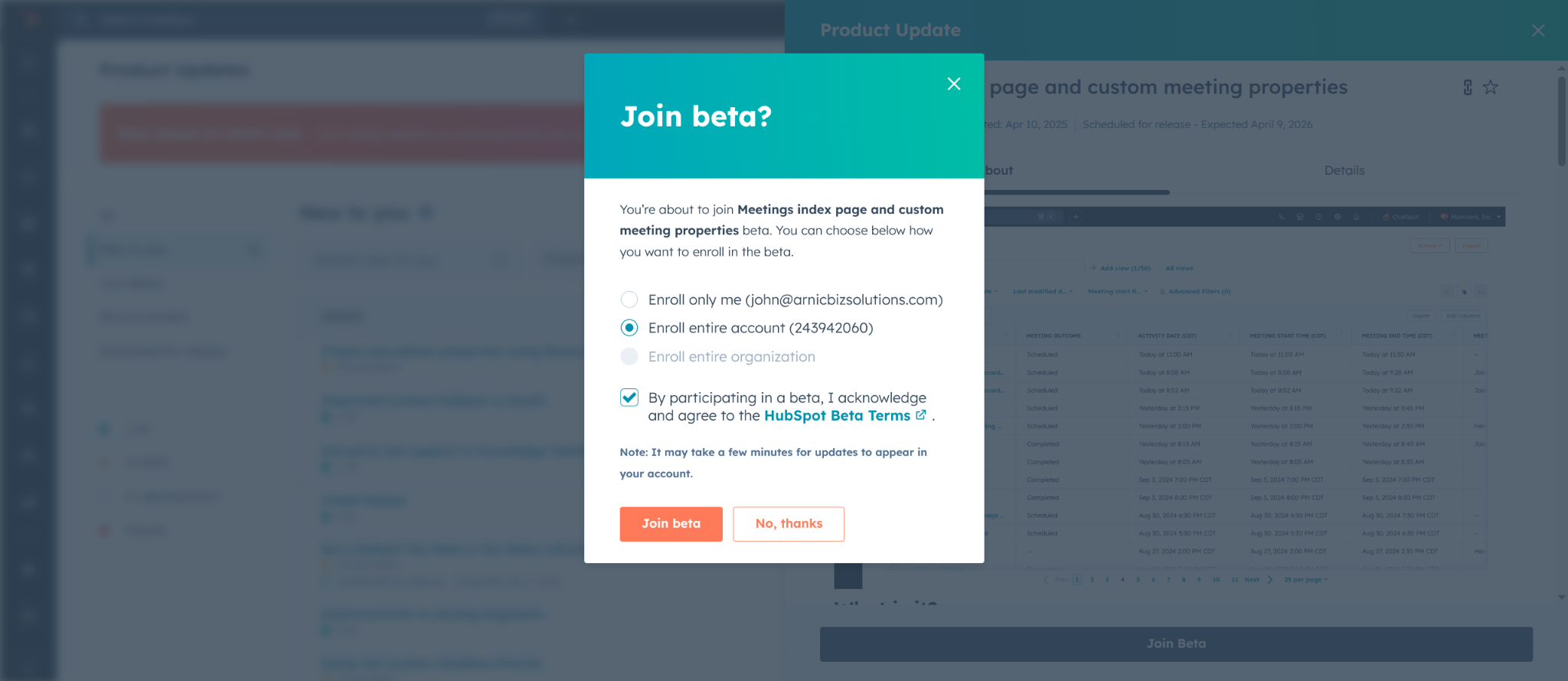
Enabling Custom Meeting Properties in HubSpot Some HubSpot users may be required to activate the Meetings index page and custom meeting properties feature within their HubSpot portal to enable custom properties on the Meeting object.
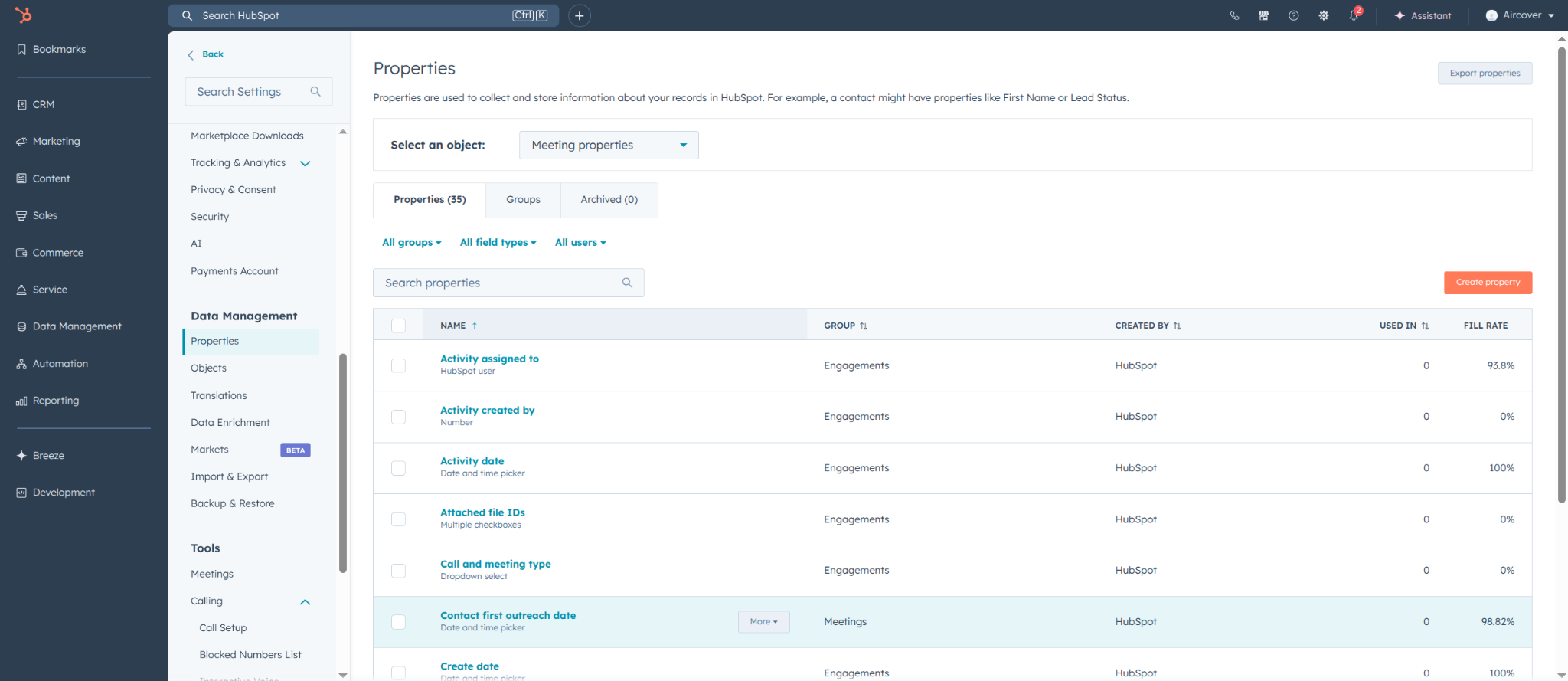
Adding Custom Properties to HubSpot Admins can follow the procedure outlined in the Create and edit properties to add custom fields to correspond to their team’s agent of choice.
HubSpot App Installing the Aircover AppPending approval, the Aircover app will be installable in your HubSpot portal from the HubSpot Public App marketplace.
Connecting Aircover to HubSpot Admins can connect Aircover to HubSpot by successfully completing the OAuth authentication process.
App Home Page The app homepage allows users to quickly access meeting and call analytics, as well as app configuration settings.
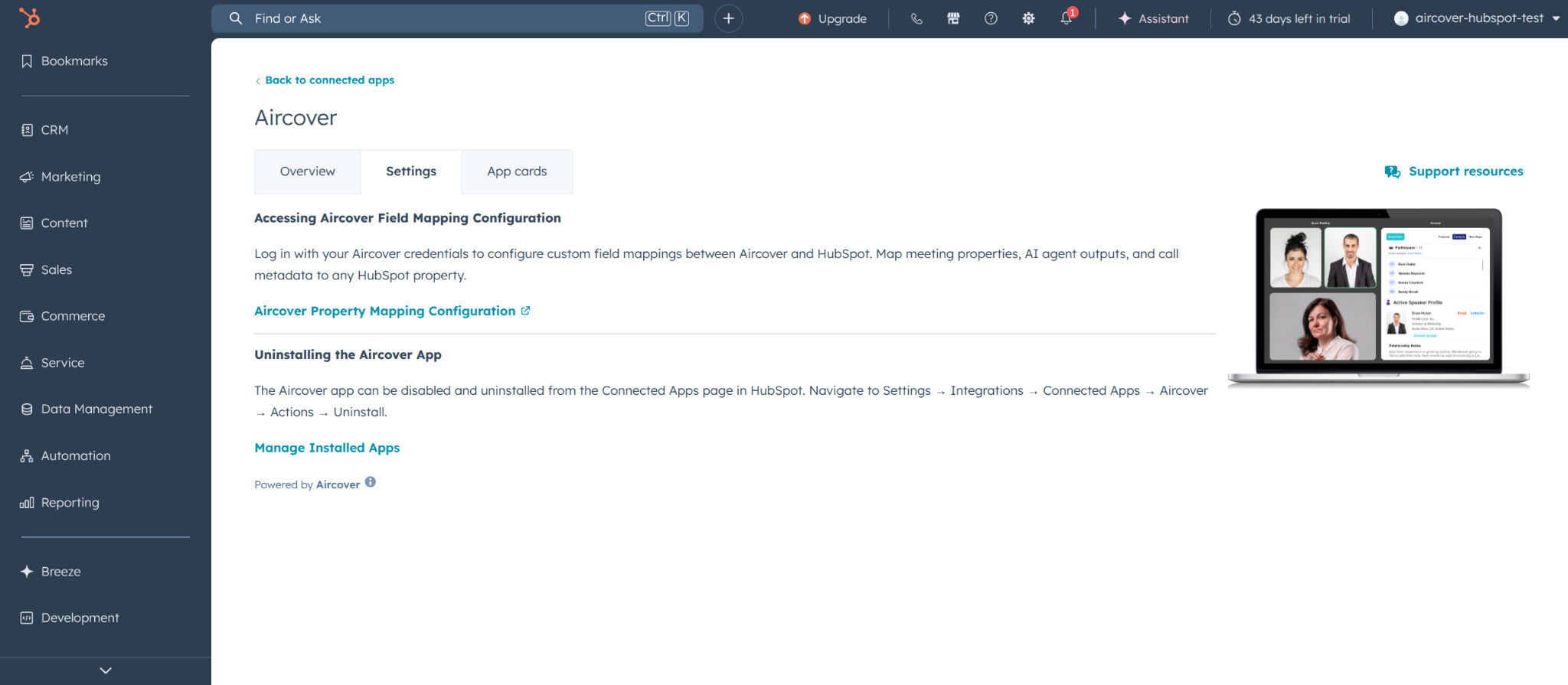
App Settings Page The App Settings page allows users to quickly access Aircover Integration settings to configure score syncing, field mapping, and more.
App Cards The Aircover app includes custom cards that admins can place on record pages for easy access to Aircover data.
Support Settings The Support settings page provides critical contact information to reach out to the Aircover team for support.
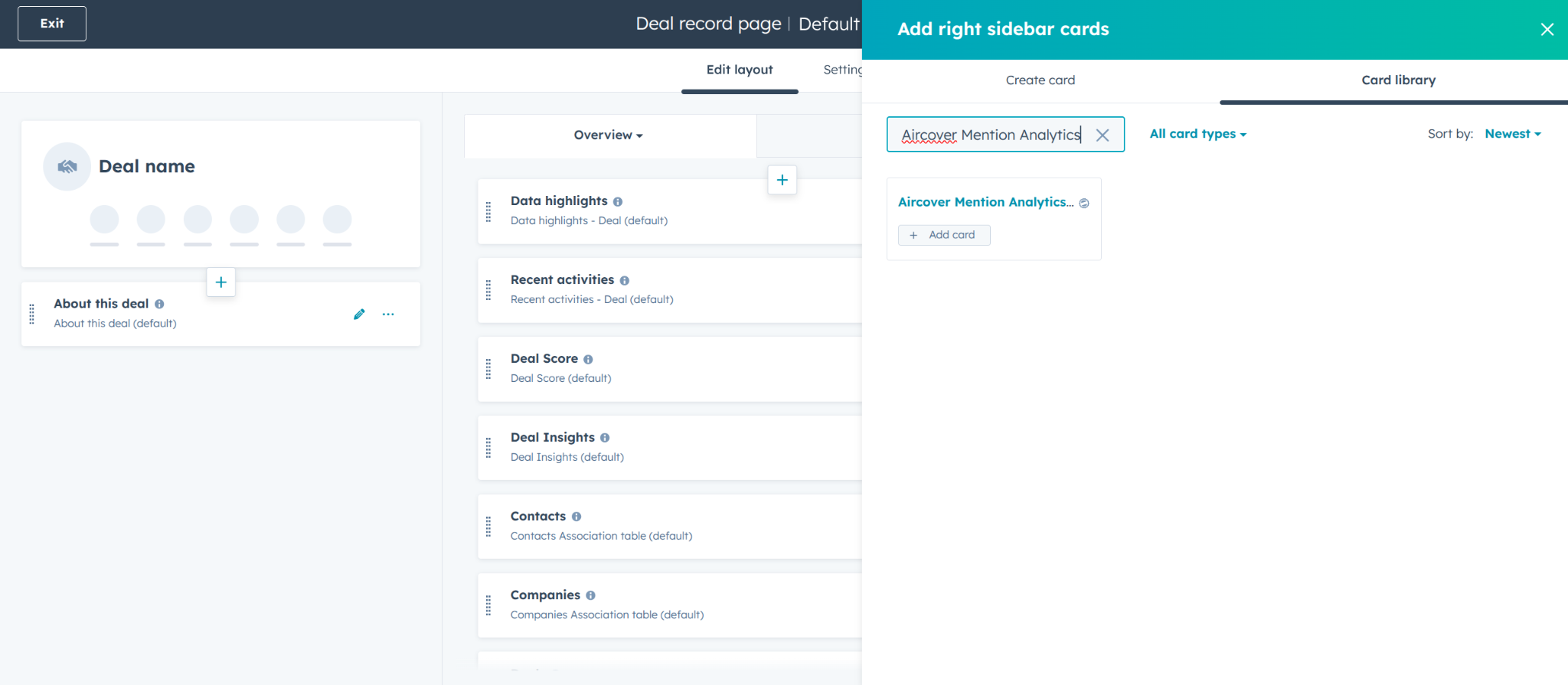
Selection: Locate the Aircover Mention Analytics card and drag it to your preferred location in the right-hand sidebar.
App Permissions The Aircover App requires permission to access the following scopes: